Custom providers
Define your own provider in Pipes when the one you need isn't in the WorkOS catalog.
Custom providers let you connect a provider that isn’t in the WorkOS catalog. Instead of choosing a pre-built provider, you supply the provider’s configuration yourself. Once configured, a custom provider works just like a catalog provider: it appears in the Pipes widget, your users connect their accounts, and you fetch credentials from your backend.
A custom provider authenticates with either OAuth or an API key. Choose OAuth when the provider runs an authorization flow, and API key when it issues each user a single opaque key.
A custom provider is different from custom credentials. Custom credentials let you use your own OAuth application with a provider that WorkOS already supports. A custom provider lets you define a provider that WorkOS doesn’t yet support at all.
Open the Pipes section of the WorkOS Dashboard and click Connect provider, then choose Add a custom provider. Pick the authentication method the provider uses – OAuth or API key – and the rest of the form follows from that choice.
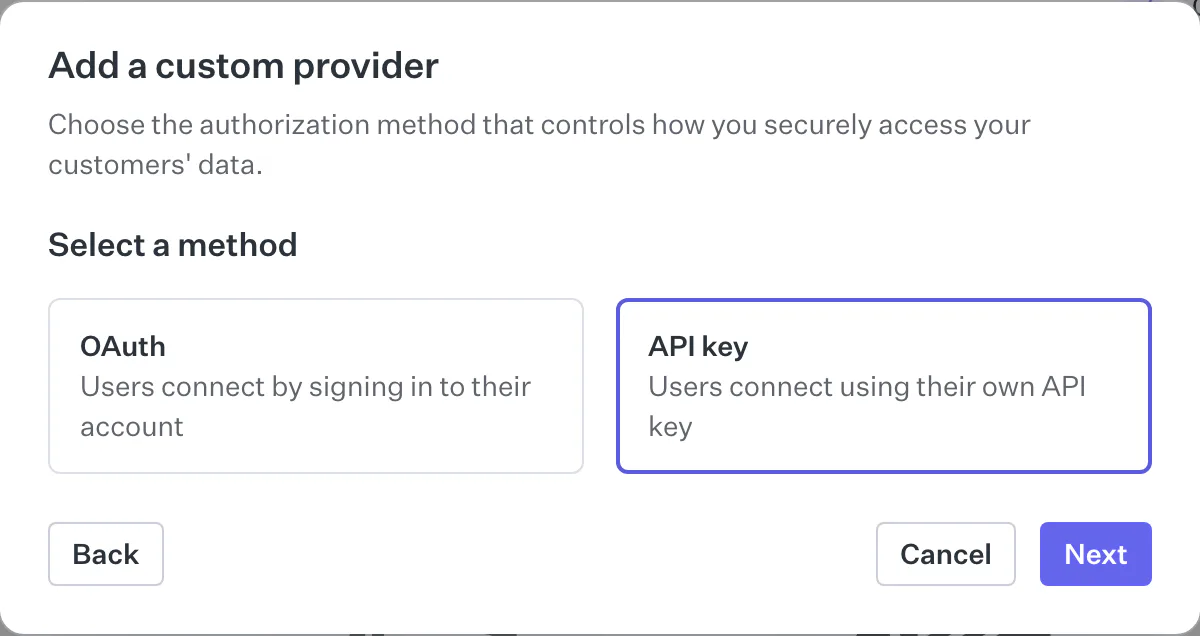
An OAuth provider takes the full configuration:
- Provider details. Enter a name for the provider, a slug that identifies it within your environment, and an optional description shown to users in the widget.
- OAuth endpoints. Enter the provider’s authorization URL and token URL. If the provider issues refresh tokens from a different endpoint, set the refresh token URL as well.
- Credentials. Create an OAuth application in the provider’s dashboard and register the redirect URI shown in the form. Then enter the client ID and, if the provider requires one, the client secret.
- Scopes. Add the scopes your application needs. Users grant these scopes when they authorize the connection.
An API key provider takes the provider details and nothing else. See API key custom providers.
These settings apply to custom providers that authenticate with OAuth. Most providers work with the default settings, but you can adjust how WorkOS builds the authorization request and exchanges tokens to match your provider’s requirements.
| Field | Description |
|---|---|
| Name | The display name shown in the dashboard and the Pipes widget. |
| Slug | A unique identifier for the provider within your environment. |
| Description | Optional text shown to users in the widget describing how their data is used. |
| Authorization URL | The endpoint users are redirected to in order to authorize the connection. |
| Token URL | The endpoint WorkOS calls to exchange an authorization code for tokens. |
| Refresh token URL | Optional. The endpoint WorkOS calls to refresh tokens, if different from the token URL. |
| Scopes | The scopes requested during authorization. |
| Scopes required | Whether at least one scope must be requested when authorizing. |
| Scope separator | The character used to join multiple scopes in the request. Most providers use a space; some use a comma. |
| Client secret required | Whether the provider requires a client secret. Disable for providers that authorize with PKCE only. |
| PKCE enabled | Whether to use PKCE (with the S256 challenge method) during the authorization flow. |
| Authenticate via | How WorkOS sends client credentials when exchanging and refreshing tokens: in the request body or as a basic authorization header. |
| Token body content type | The content type WorkOS uses for the token request body, such as application/x-www-form-urlencoded or application/json. |
| Additional authorization parameters | Extra key-value pairs appended to the authorization URL, for providers that require provider-specific parameters. |
A custom provider can authenticate with an API key instead of OAuth. Choose
API key when adding the provider, or declare one from your backend with the
create data integration endpoint by
setting auth_methods to ["api_key"] alongside a custom_provider block.
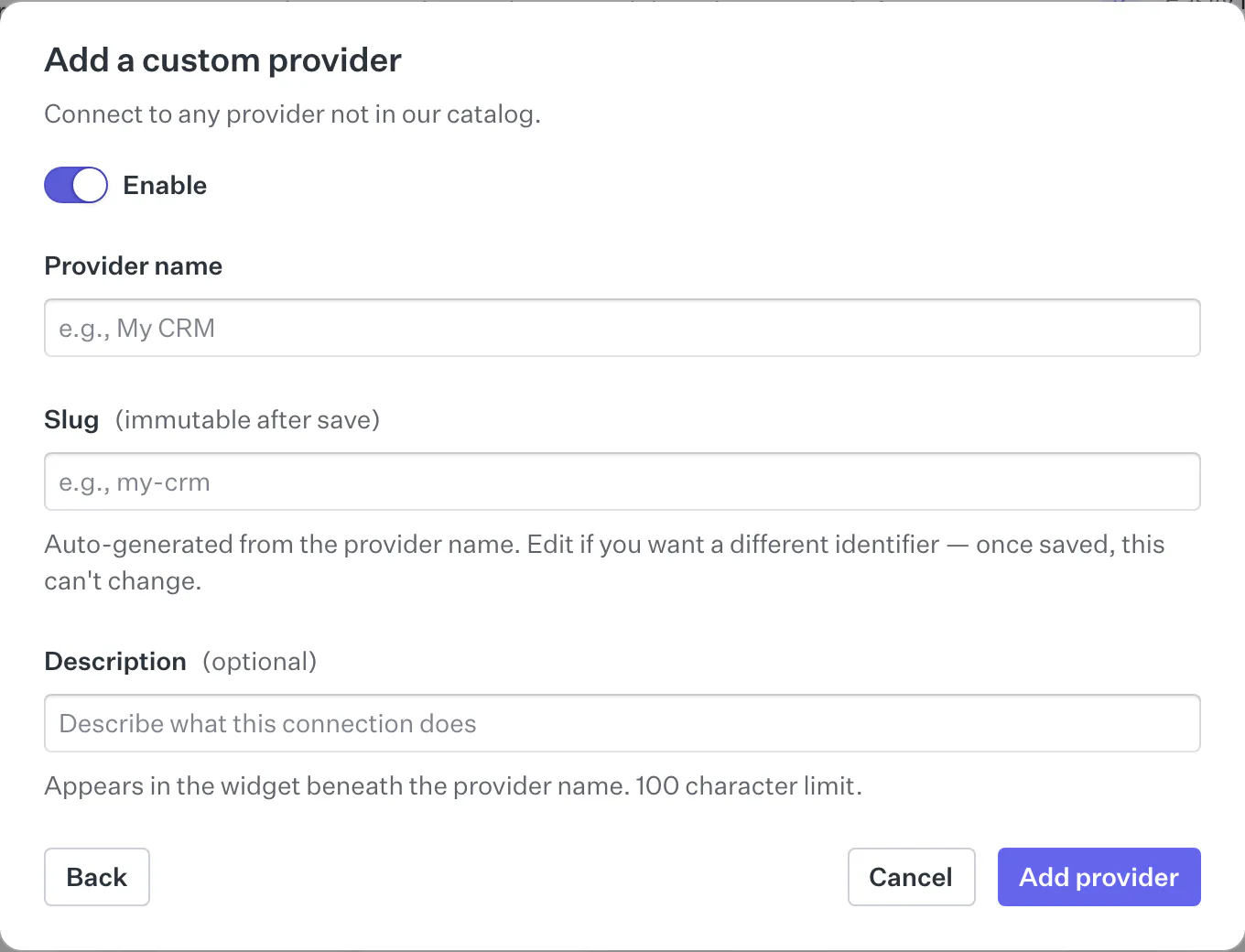
An API key custom provider has no OAuth application behind it, so credentials
is null on the integration and name is the only field the provider
definition accepts. Supplying OAuth configuration fails the request
rather than being silently dropped, so a misconfigured provider surfaces
immediately instead of failing later when a user tries to connect. These are
rejected:
- The endpoints:
authorization_url,token_url, andrefresh_token_url - The flow settings:
pkce_enabled,request_scope_separator,scopes_required,client_secret_required,additional_authorization_parameters,token_body_content_type, andauthenticate_via credentials, which belong to an OAuth application
Two related behaviors are worth knowing. scopes are accepted but cleared,
since an API key carries whatever access the key itself was issued with and
there’s nothing to request at authorization time. And a custom provider
declares exactly one authentication method – a list containing both api_key
and oauth is rejected.
Changing the definition and rotating a key are separate requests. Sending
custom_provider, description, or scopes alongside an api_key block is
rejected, because the definition and the stored key are written by different
paths and accepting both would leave one of them stale.
Users supply their own keys once the provider exists, exactly as they do for a catalog API key provider. See API key providers for the widget flow and for retrieving credentials from your backend.
A custom provider appears in the Pipes widget alongside your other providers. Users connect their account through the widget, which manages the OAuth authorization flow and stores the connection. For an API key provider the widget renders a key entry form instead, described in API key providers.
Once a user has connected the provider, fetch access tokens from your backend to call the provider’s API on their behalf. Pipes refreshes the token when needed, so you always have a fresh token.
Edit a custom provider’s configuration at any time from its settings in the Pipes section of the dashboard.
Deleting a custom provider also removes its connected accounts. Existing access tokens stop working, and users will no longer see the provider in the widget.